Before you quote: Use the calculator to understand the file component of the job, then allow for your own workshop time, testing, equipment and other costs when preparing the customer price.
Pricing disclaimer: The calculator is a guide only. All file prices are set by Zentune and are subject to Zentune’s terms and conditions. Confirm the current price shown in your account before quoting or accepting a job.
1
Open the file price calculator
The portal has a built-in calculator to help you accurately set your workshop price or prepare a quote for your customer.
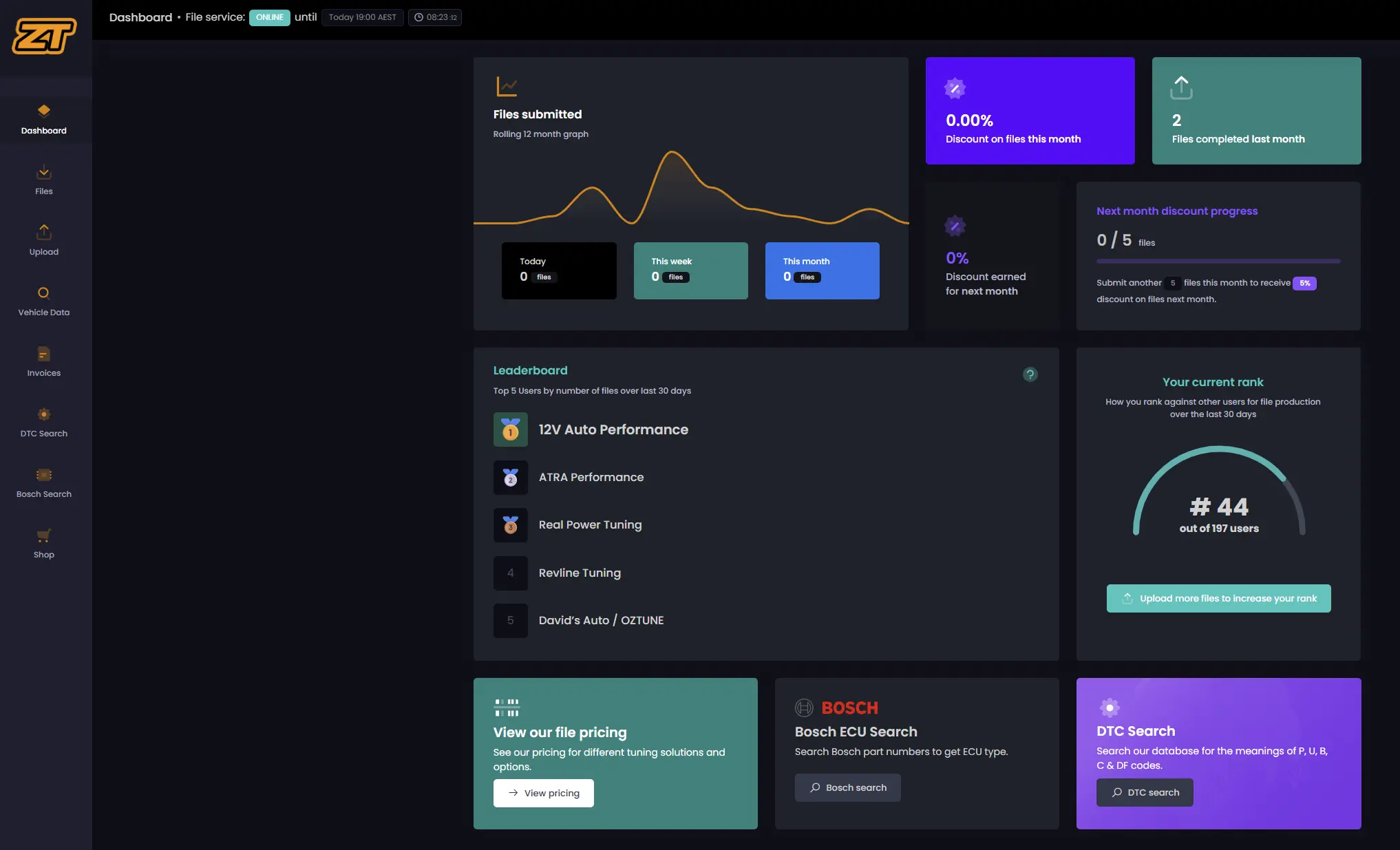
From the dashboard, find View our file pricing and select View pricing.
2
Select the vehicle type
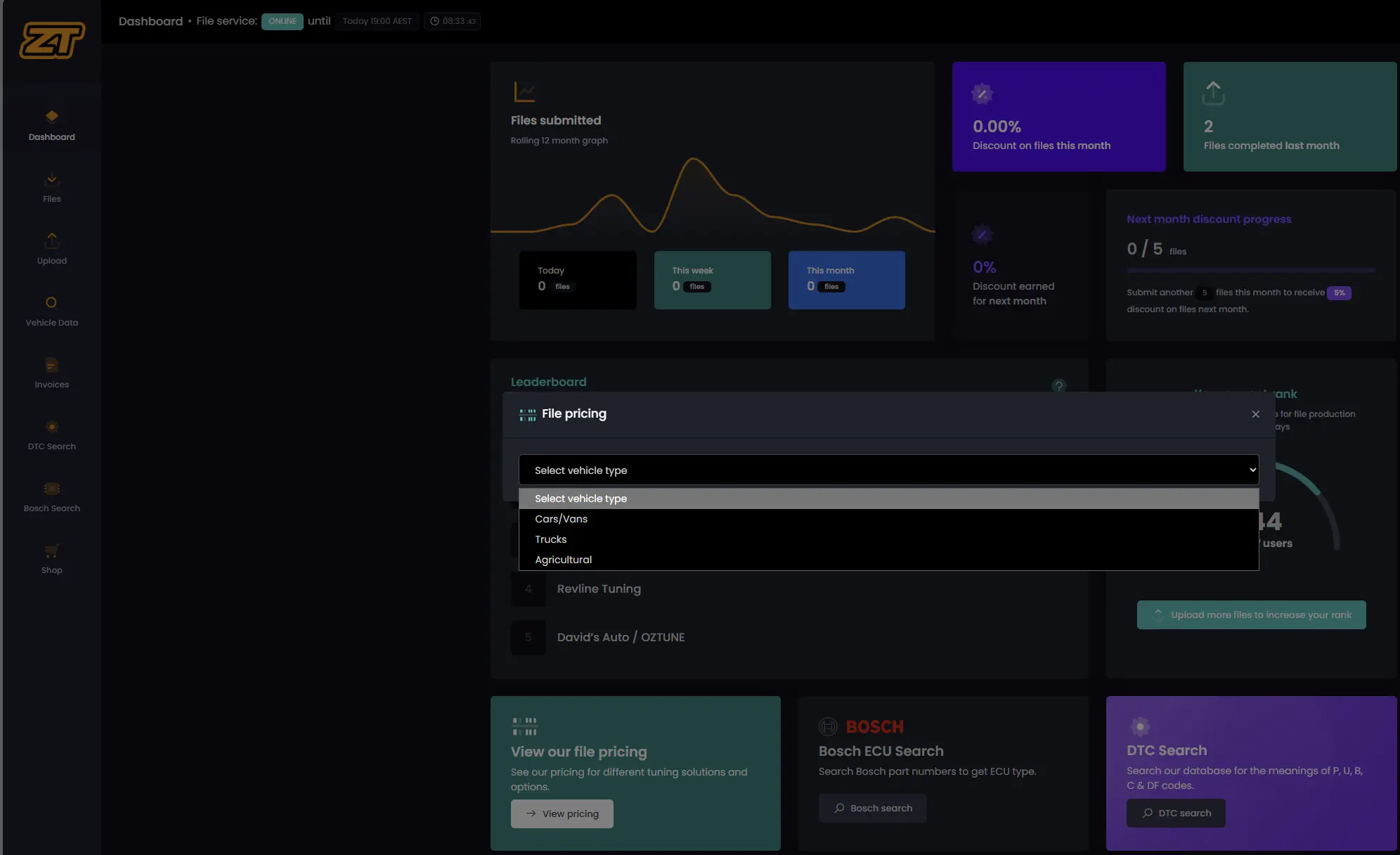
Choose Cars/Vans, Trucks or Agricultural from the vehicle type menu.
Cars/Vans provides Diesel, Petrol and TCU/DSG transmission options in the next step.
3
Select the calibration requirements
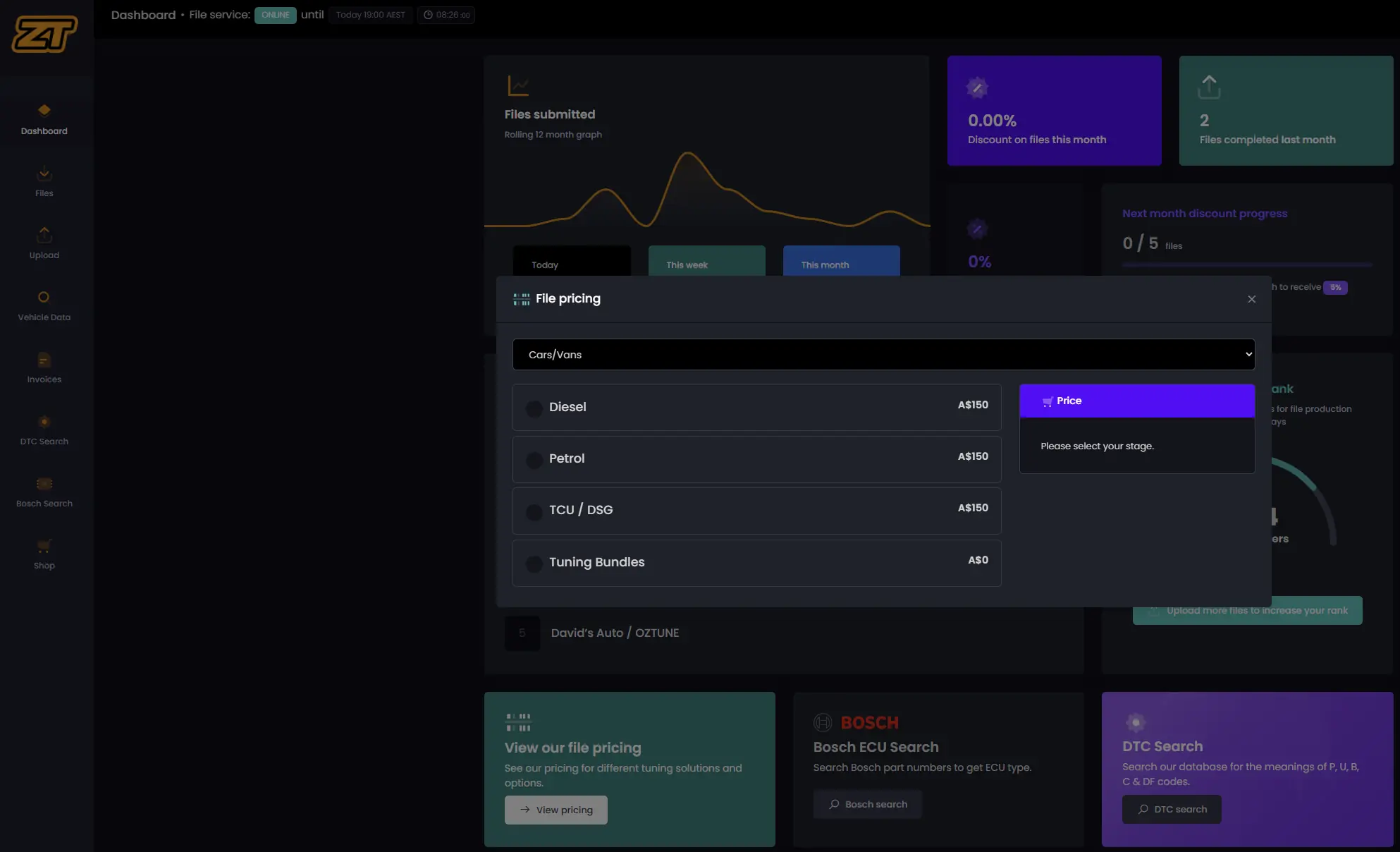
Choose the relevant file category, then select the calibration services and options required for the job.
Only select services appropriate for the vehicle, hardware and intended use.
4
Review the calculated file cost
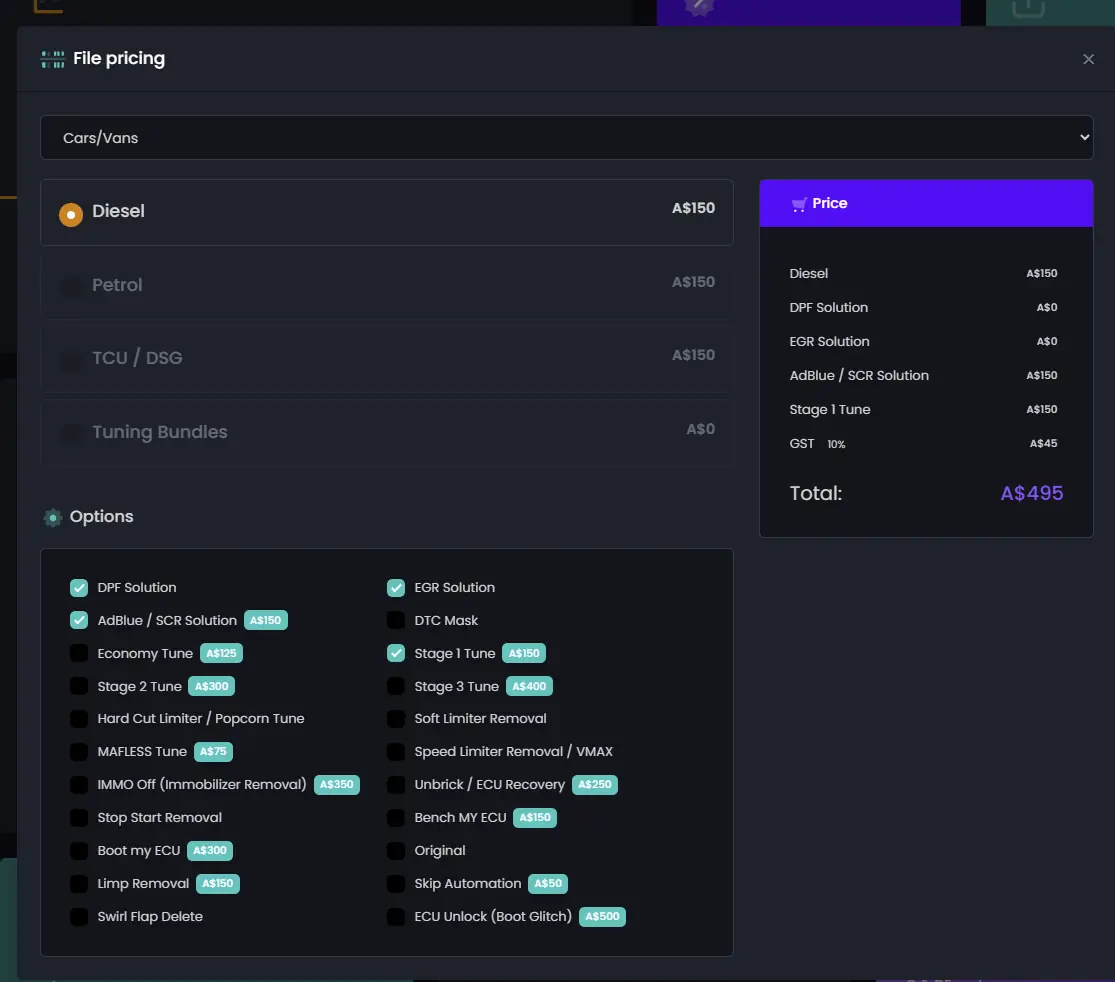
The price summary updates to show the selected services, applicable charges, GST and the calculated file total.
Use the displayed total as the current file-cost guide, not as the complete customer price for the workshop job.
Continue with the portal
Submit and manage calibration files
Return to the main portal guide for the complete file upload, vehicle selection and job-tracking workflow.