South West Tuning Co. Trade Network

Zentune Portal Guide

A practical workflow guide for registered Zentune portal users—from identifying the vehicle and uploading the original file through to selecting the calibration and tracking the completed job.

01Select vehicle
02Upload file
03Confirm details
04Select calibration
05Track return
For registered portal users: This guide begins after your workshop account has been created and your programming tool is ready.
Before you begin: diagnose the vehicle properly, use a stable power supply and keep the original file safely stored. The portal depends on accurate vehicle, controller and tool information.
1

Choose the vehicle type

Open Upload from the left menu, then choose cars/vans, trucks or agricultural.
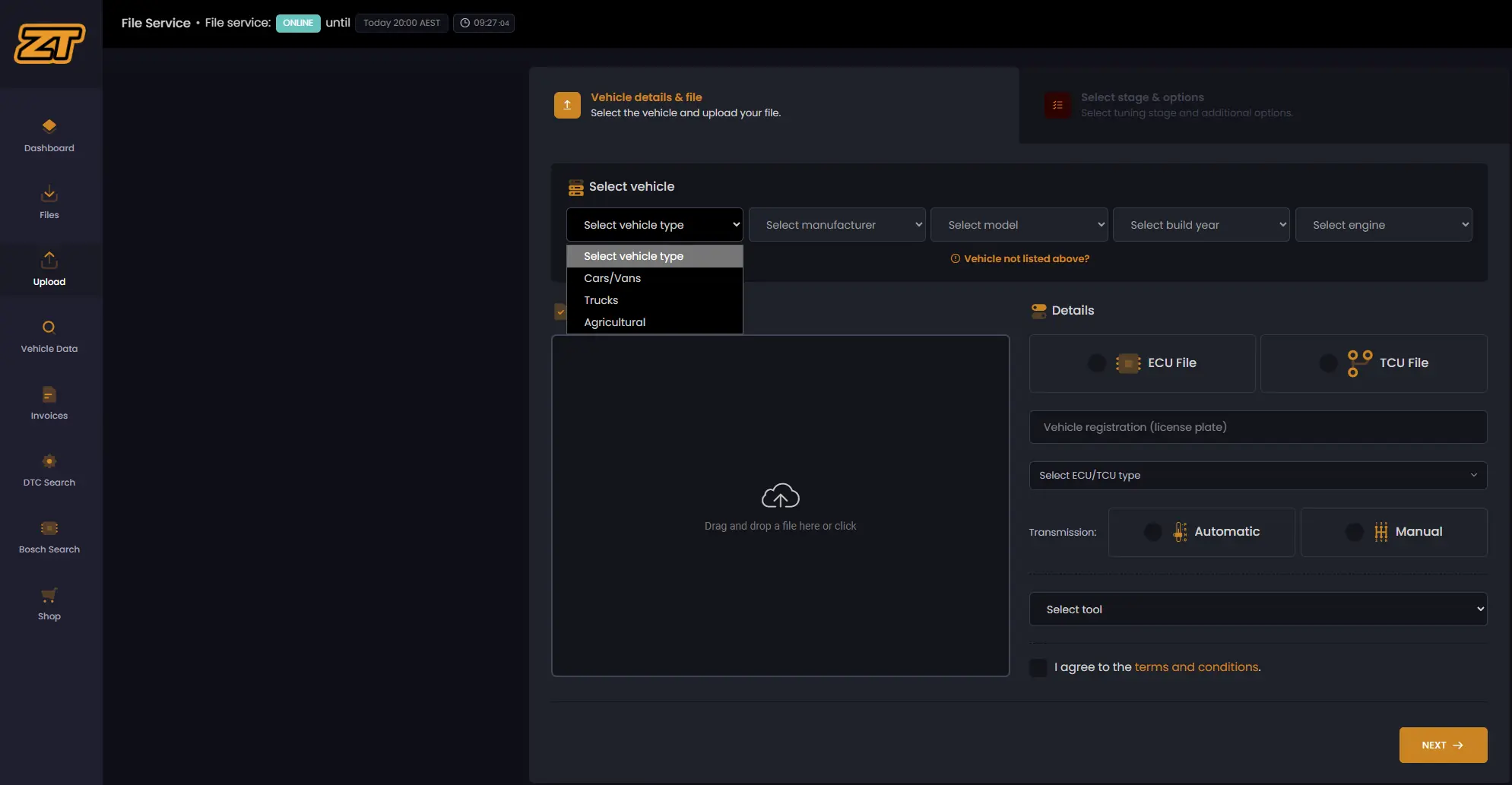
Start with the broad category before selecting manufacturer, model, year and engine.
Choose the vehicle type in the Zentune portal
2

Identify the vehicle

Select manufacturer, model, build year and engine. The portal then shows likely ECU types and compatible tools.
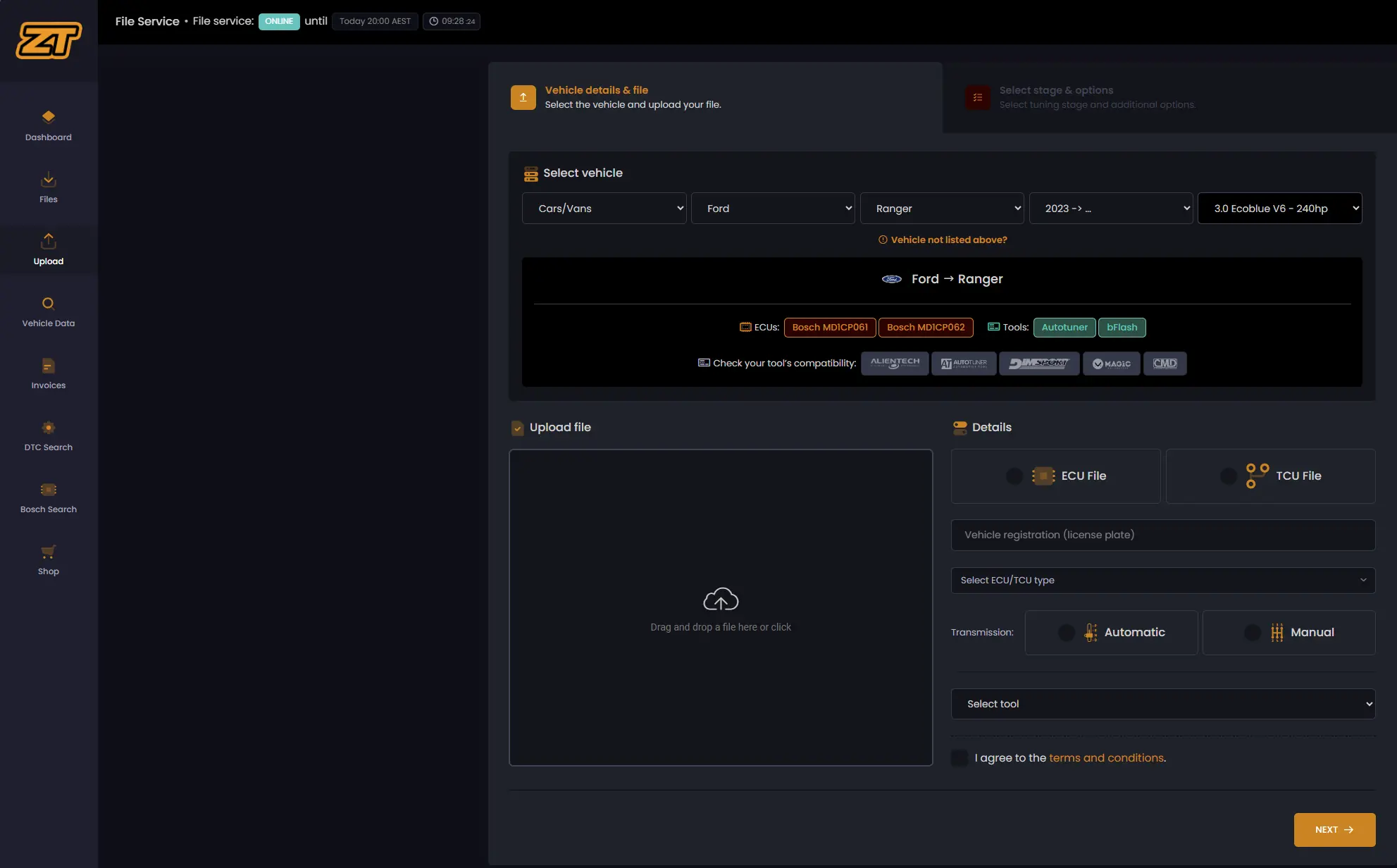
Check the engine and controller against the vehicle in front of you; do not rely on registration details alone.
Identify the vehicle in the Zentune portal
3

Upload the original file

Drag the read file into the upload area or click the panel to browse.
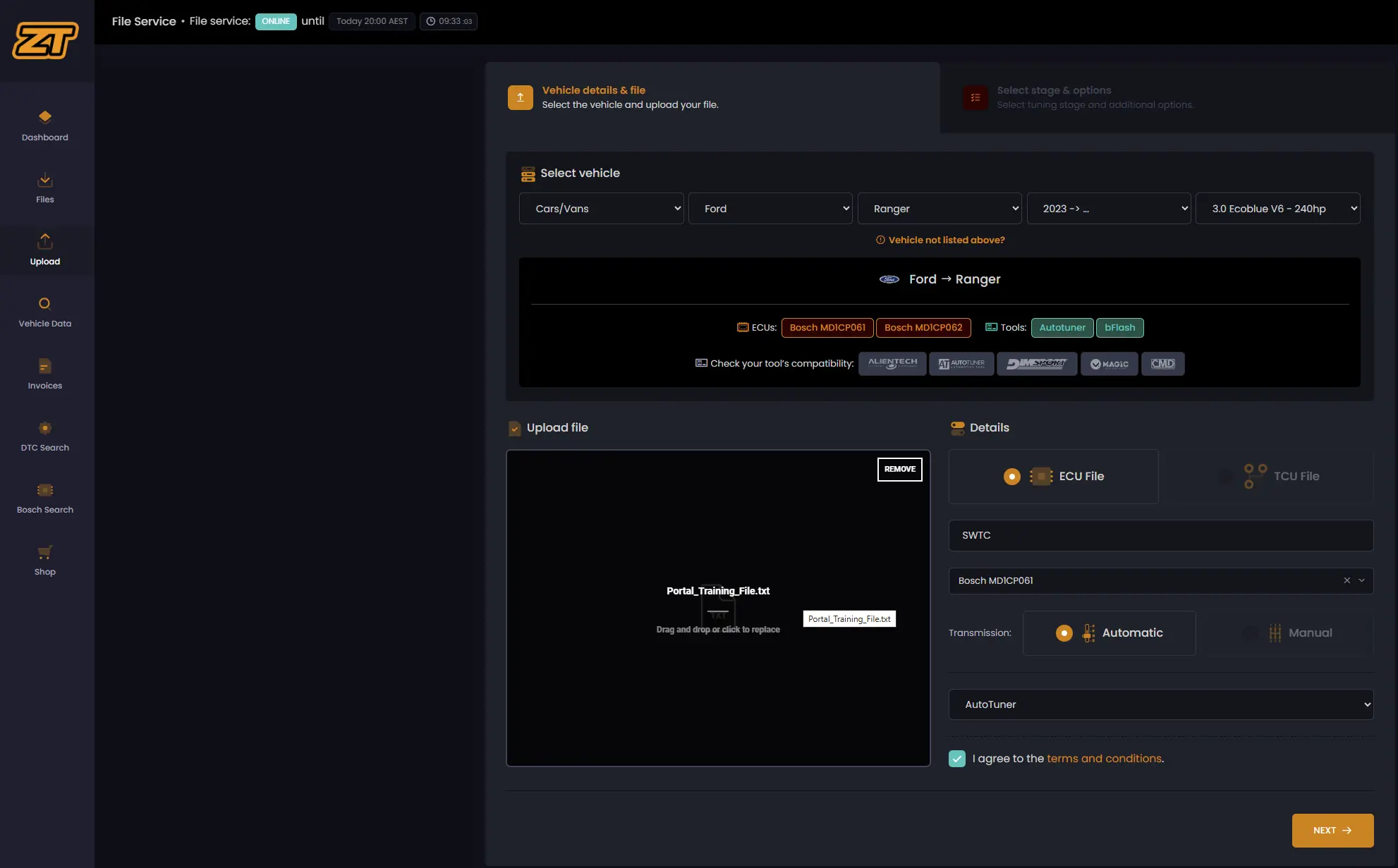
Keep an untouched original in your own workshop records.
Upload the original file in the Zentune portal
4

Complete the file details

Select ECU or TCU, enter the registration where required, choose the controller and confirm the transmission.
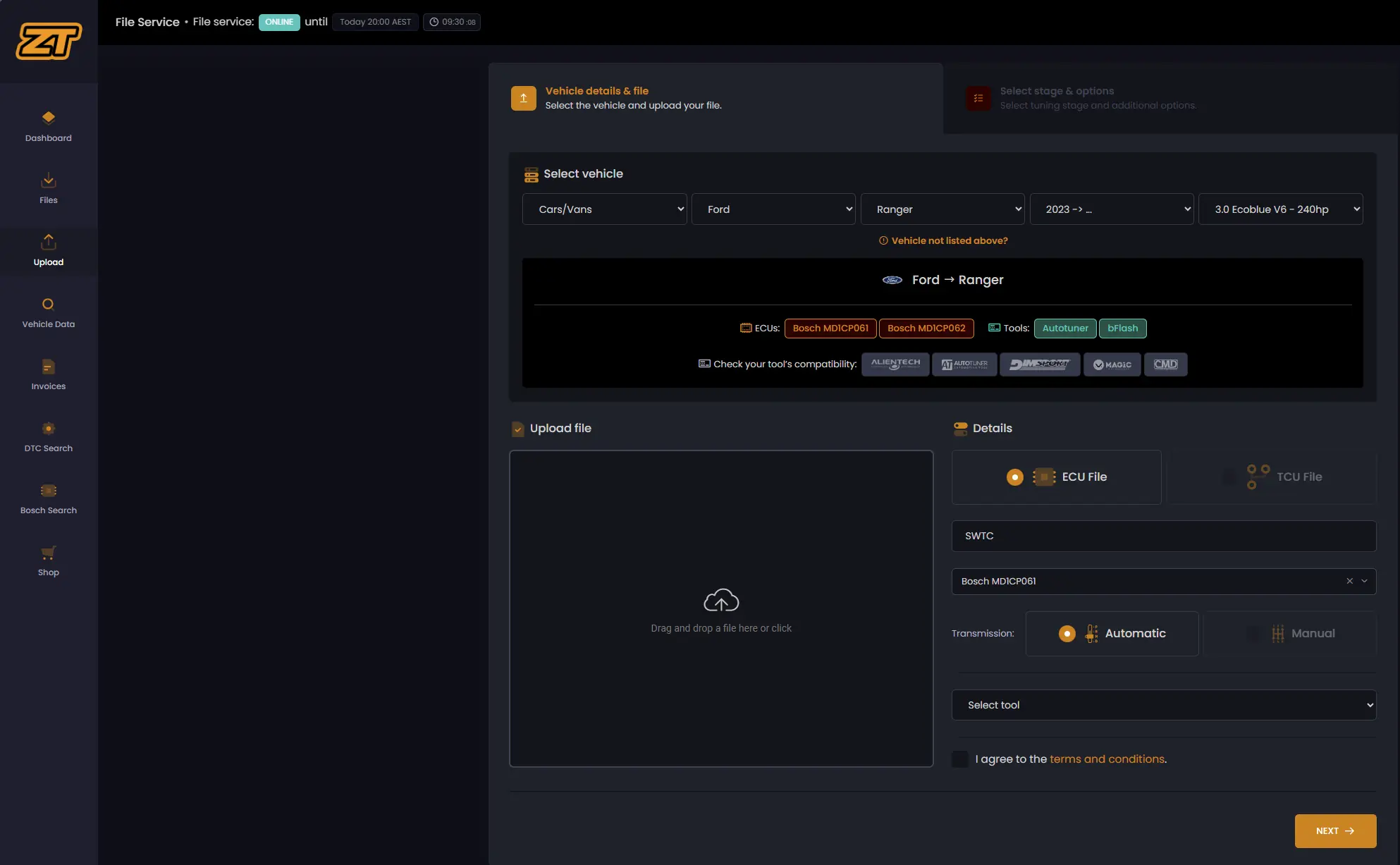
The controller selection must match the file you uploaded.
Complete the file details in the Zentune portal
5

Select the tuning tool

Choose the tool used to read and write the vehicle.
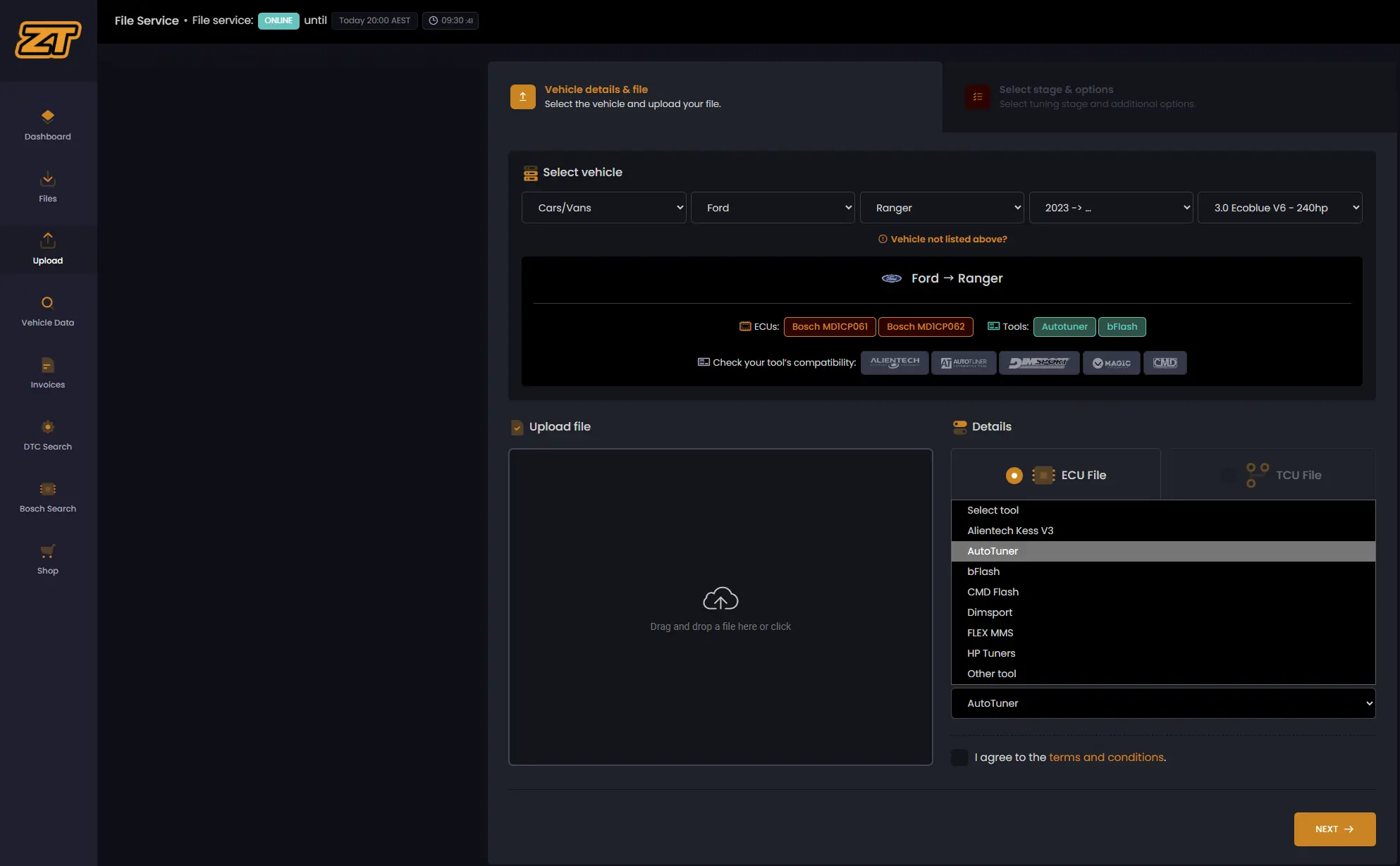
Select the actual tool used for this job so the returned format suits the workflow.
Select the tuning tool in the Zentune portal
6

Select the calibration

Choose the relevant solution, tuning stage or available bundle, then select any required options.
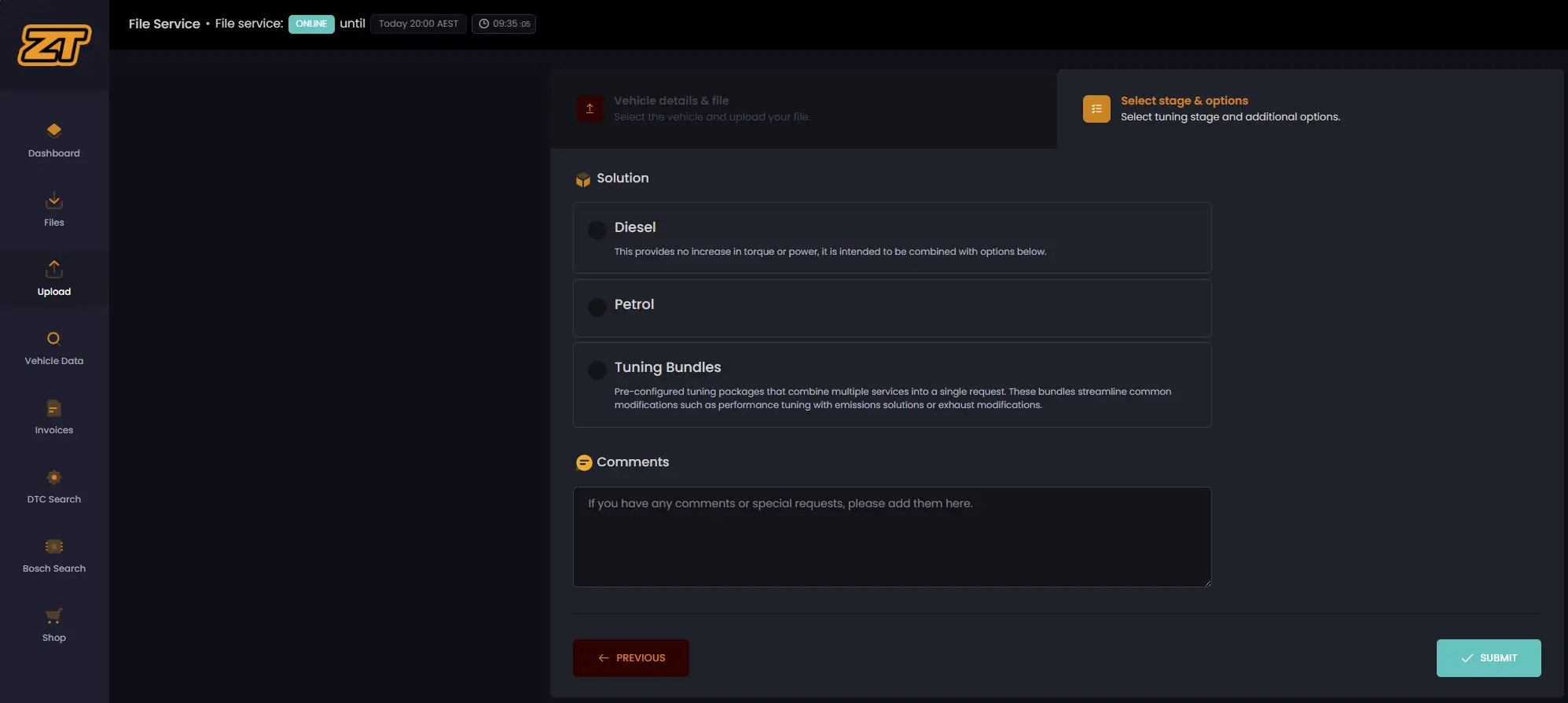
Only request services suited to the vehicle, hardware and intended use.
Select the calibration in the Zentune portal
7

Add useful workshop comments

Include mileage, vehicle use, modifications, known issues and the result you are trying to achieve.
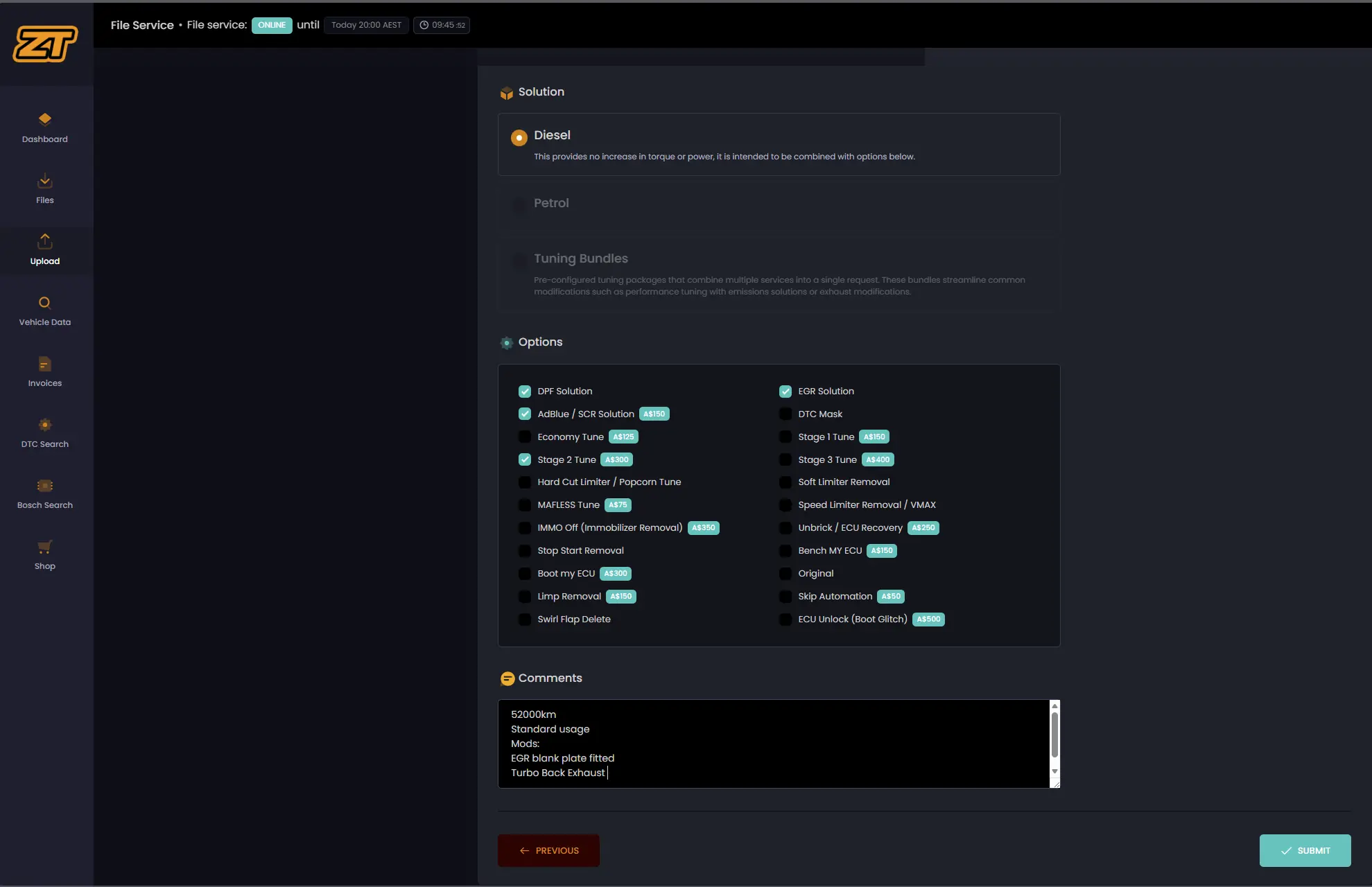
Brief but specific notes reduce delays and avoidable revisions.
Add useful workshop comments in the Zentune portal
8

Track and retrieve the job

Use Files to view job history, status and returned work.
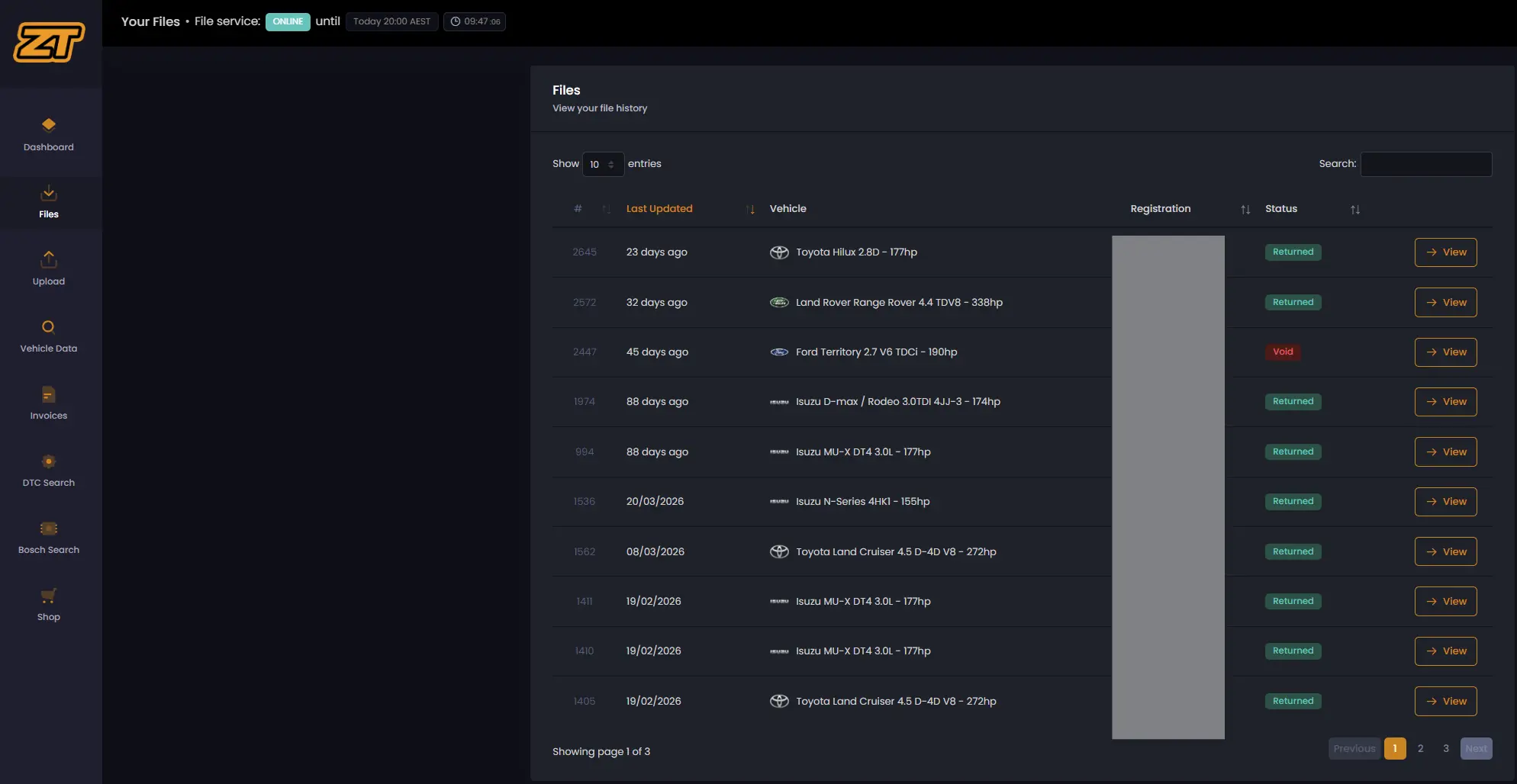
Keep your own customer and vehicle records as well.
Track and retrieve the job in the Zentune portal

Ready to begin?

Register through South West Tuning Co.

Access agreed Zentune credit pricing, portal onboarding and local trade support.